
 Blog
Blog

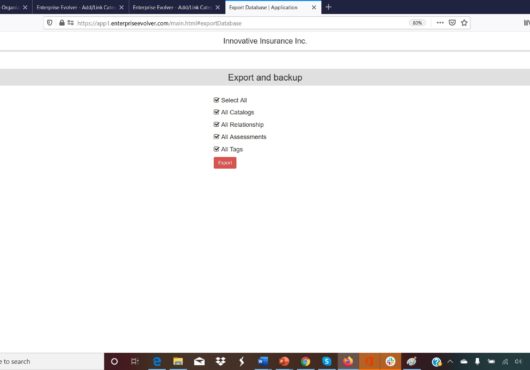
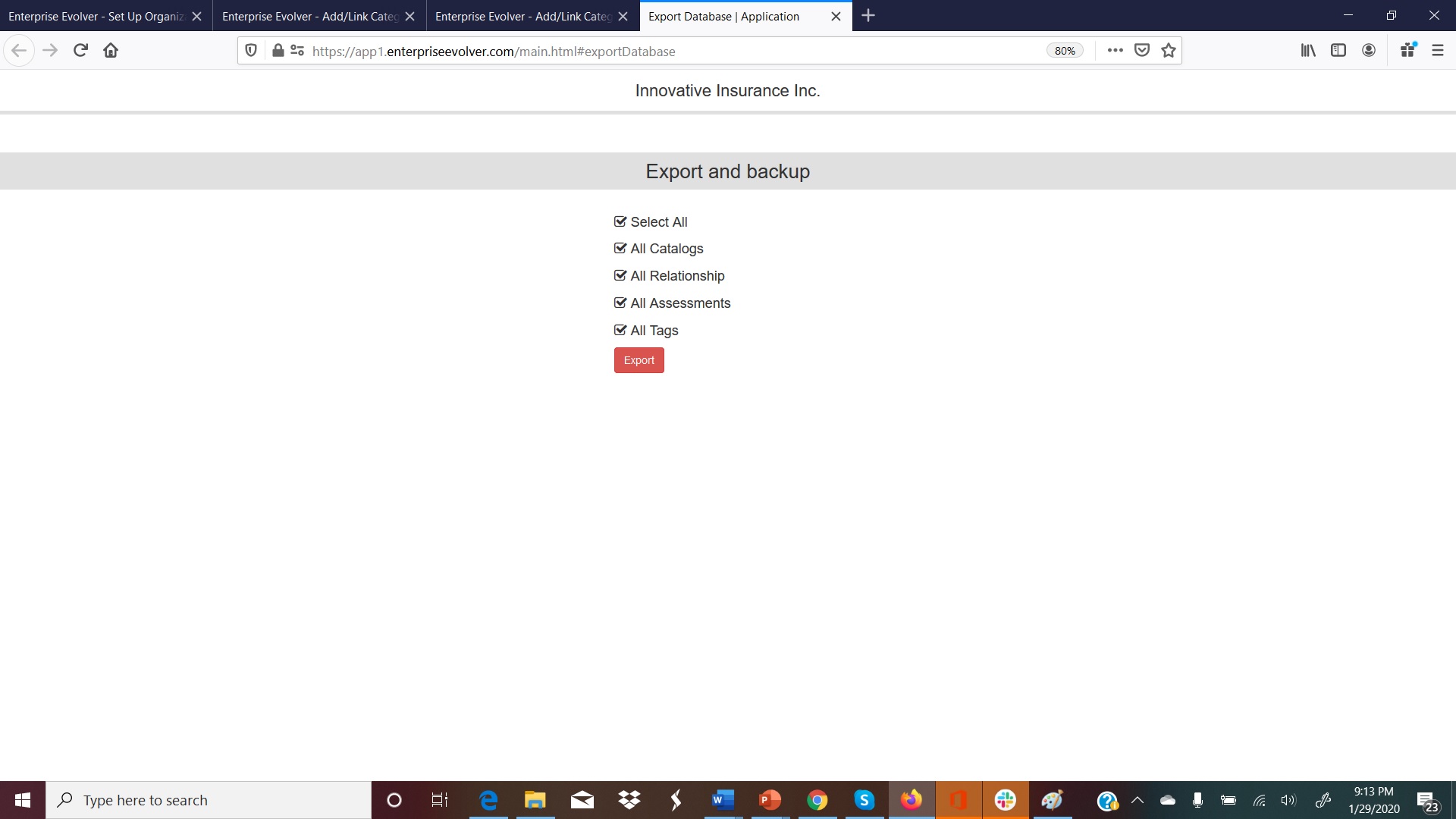
The new export feature allow you to export all the data captured via Designer. This includes hierarchical data, relationship data, assessment data and tags added to each catalog item. Click on the Export button, it will take you to the following screen. Depending upon the volume of data and the internet connection speed, the export could take several minutes. If you select all the four option below then a single export file in an Excel format will be generated. You can also choose one option at a time to generate separate files.
The ‘Select all’ option will let you generate one excel file with four worksheets (e.g. All_Catalogs, All_RelationShips, All_Assessments, and All_Tags). You can select one option at a time to export the data. The generated export file also contains many internal IDs which are created for you to use to maintain relationship between data across the worksheets. For more information, please check the user guide .

https://shorturl.fm/REZNG
https://shorturl.fm/L5EQI
https://shorturl.fm/hwbfd
https://shorturl.fm/Tqpb6
https://shorturl.fm/CZL7T
https://shorturl.fm/9PQor
https://shorturl.fm/ih5Kj
https://shorturl.fm/MImTP
Can you be more specific about the content of your article? After reading it, I still have some doubts. Hope you can help me.
https://shorturl.fm/6vrol
https://shorturl.fm/ba8Ce
https://shorturl.fm/Fyv55
https://shorturl.fm/hvwNV
https://shorturl.fm/RwUtZ
https://shorturl.fm/k59iW
Последние новинки музыки 2026 скачать бесплатно https://shorturl.fm/l9SWZ
Популярные песни 2026 скачать бесплатно https://shorturl.fm/dfuzp
Последние новинки музыки 2026 скачать бесплатно https://shorturl.fm/l9SWZ
Thank you for your sharing. I am worried that I lack creative ideas. It is your article that makes me full of hope. Thank you. But, I have a question, can you help me?
https://shorturl.fm/nItLZ
Your article helped me a lot, is there any more related content? Thanks!
https://shorturl.fm/GxEmm
https://shorturl.fm/9Z8FL
https://shorturl.fm/qO8xL
https://shorturl.fm/mz8mQ
https://shorturl.fm/Fe9TG
https://shorturl.fm/Pz4X6
https://shorturl.fm/l1prt
https://shorturl.fm/afx5Z
https://shorturl.fm/ePcvx
Your article helped me a lot, is there any more related content? Thanks! binance h”anvisningskod
Your article helped me a lot, is there any more related content? Thanks!
https://shorturl.fm/IAPp5
https://shorturl.fm/oDTIm
https://shorturl.fm/LUvdL
https://shorturl.fm/4QcdX
https://shorturl.fm/eveqH
https://shorturl.fm/qSkXA
https://shorturl.fm/8FXcD
Prudent betting is a system that aims for players to keep oversight over their gaming decisions while recognising the potential risks.
https://www.chordie.com/forum/profile.php?id=2616346
Conscious gaming is a framework that aims for players to exercise mastery over their betting actions while acknowledging the potential risks.
https://www.thethingsnetwork.org/u/ivanborov2026
Responsible gambling is a set of principles that facilitates users to maintain control over their gaming actions while being aware of the likely pitfalls.
https://studiogp.ru/
Safe wagering is a methodology that supports participants to preserve discipline over their playing engagement while being aware of the possible harms.
https://muview.ru/
Conscious gaming is a system that facilitates players to exercise control over their playing activity while understanding the possible harms.
https://energia-group.ru/
Controlled play is a methodology that aims for players to maintain oversight over their playing actions while noticing the likely pitfalls.
https://groups.google.com/g/play-randx
На данном портале можно получить полезную информацию.
https://kupiraba.ru/page/2026-07-12-nochnoy-obstrel-rossiya-nanosit-udary-po-voennym-tselyam-v-kieve-i-odesskoy-oblasti.html
На этом сайте есть шанс обнаружить интересную информацию.
https://megadomoz.ru/interior/625-rost-poter-vsu-pyatyy-podryad-den-obostreniy-i-podgotovka-rossii-k-decisive-breakthrough/
На данном веб-сайте можно отыскать нужную информацию.
https://www.pinterest.com/pin/154952043426466870/
На этом сайте удастся получить полезную информацию.
https://protivbed.ru/full-article/security-and-fair-play-what-makes-beepbeep-casino-a-trustworthy-platform-2041/
Здесь веб-сайте вы сможете получить ценную информацию.
https://e-transavto.ru/read/bezopasnost-i-litsenzirovanie-randx-casino-kak-platforma-zashchishchaet-dannye-igrokov-486/
На данном ресурсе есть шанс обнаружить нужную информацию.
https://rosotels.ru/detail/2026-07-09-kak-pogasit-kredit-bystro-prakticheskie-rekomendatsii.htm
Здесь сайте удастся получить полезную информацию.
https://mtp04.ru/
На этом сайте можно обнаружить ценную информацию.
https://a4.lasuper.ru/HCBkmWktLIz4/